🗺️
Garden Planner
Create gardens of any type, plan row-based planting with spacing calculations, use companion planting suggestions, and follow your personalized planting calendar.
🏗️Creating a Garden
- Navigate to the Garden Planner tab and tap "+ New Garden."
- Choose your garden type.Options include: Raised Bed, In-Ground Plot, Container Garden, Vertical Garden, Greenhouse, Hydroponic System, Aquaponic System, Window Box, or Balcony Garden.
- Set the garden dimensions.For raised beds and in-ground plots, enter length and width in feet or meters. For containers, enter pot diameter. Verdix calculates total square footage automatically.
- Name your garden and optionally add a photo or set its compass orientation.Orientation matters for sun exposure planning. Verdix uses this to suggest which plants go where based on height and shade tolerance.
- Tap "Create" to open the garden planner view.
💡
Create multiple gardens to represent different areas of your yard. You can plan a spring, summer, and fall garden for the same bed using succession planting.
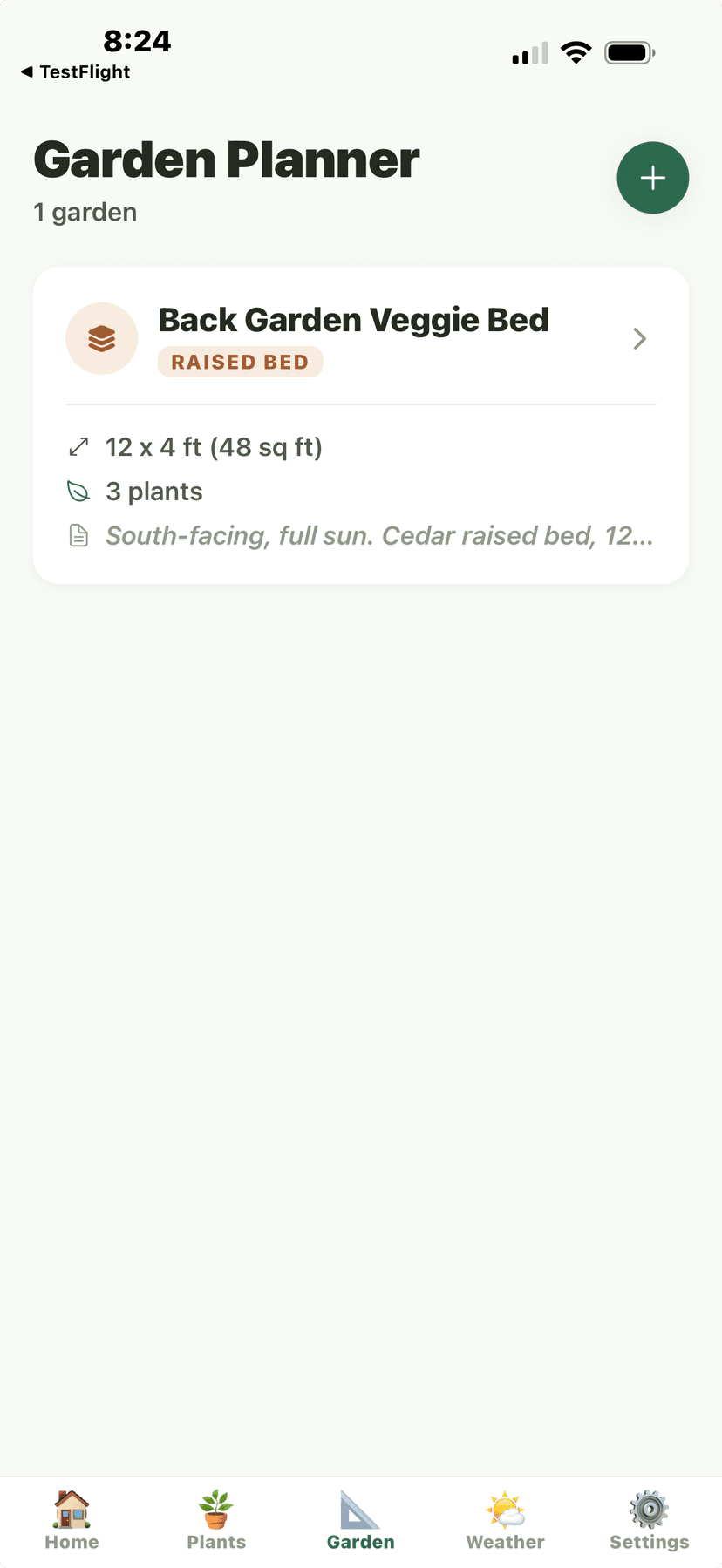
Garden Planner - list with Back Garden Veggie Bed
🌿Row-Based Planting
- Open your garden and tap "+ Add Row" or tap an empty space in the planner.
- Select a plant from your collection or search the encyclopedia.
- Set the number of plants and spacing.Verdix auto-calculates recommended spacing based on the species. For example, tomatoes get 24" between plants in a row with 36" between rows. You can override these defaults.
- Drag rows to rearrange them within the garden.The planner shows a top-down view with plant icons sized proportionally to their mature spread.
- Review the space utilization bar at the bottom to see how much of your garden is planned.
💡
Use square-foot gardening spacing for raised beds to maximize yield. Verdix calculates both traditional row spacing and intensive square-foot spacing.
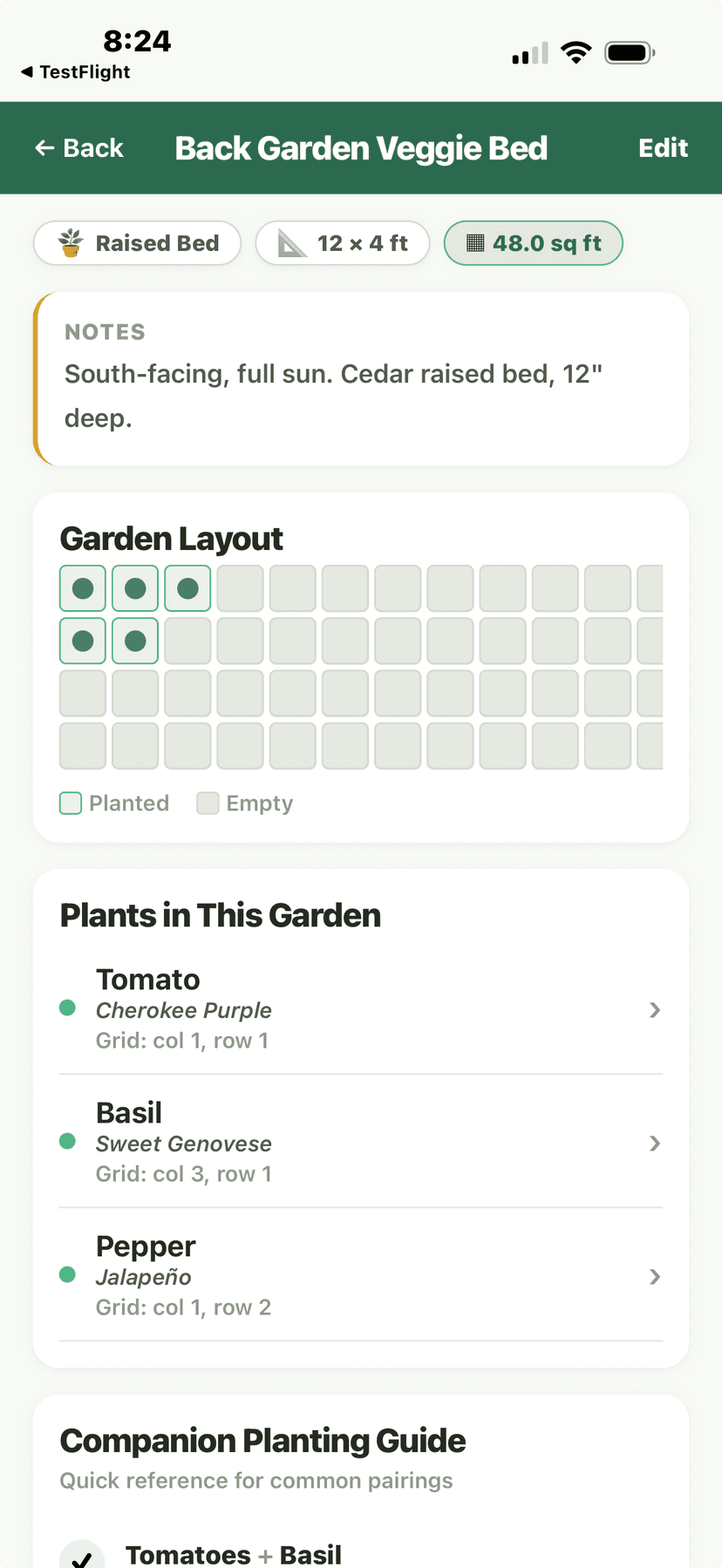
Garden Bed Detail - grid layout with plants and companion guide
🤝Companion Planting
- When adding plants to your garden, check the companion planting panel on the right.
- Green indicators show beneficial companions already in your garden.For example, basil near tomatoes repels aphids and improves flavor. Marigolds near vegetables deter many common pests.
- Red indicators warn about antagonistic pairings.Some plants inhibit each other's growth. For example, fennel should be planted away from most vegetables, and onions don't pair well with beans or peas.
- Tap any companion suggestion to see why the pairing is beneficial or harmful.
💡
The Three Sisters method (corn, beans, squash) is one of the most famous companion planting strategies. Verdix includes pre-built guild templates for common companion groups.
⚠️
Companion planting benefits are based on traditional growing wisdom and some scientific evidence. Results vary by region, soil, and microclimate.
Garden Bed Detail - companion planting guide
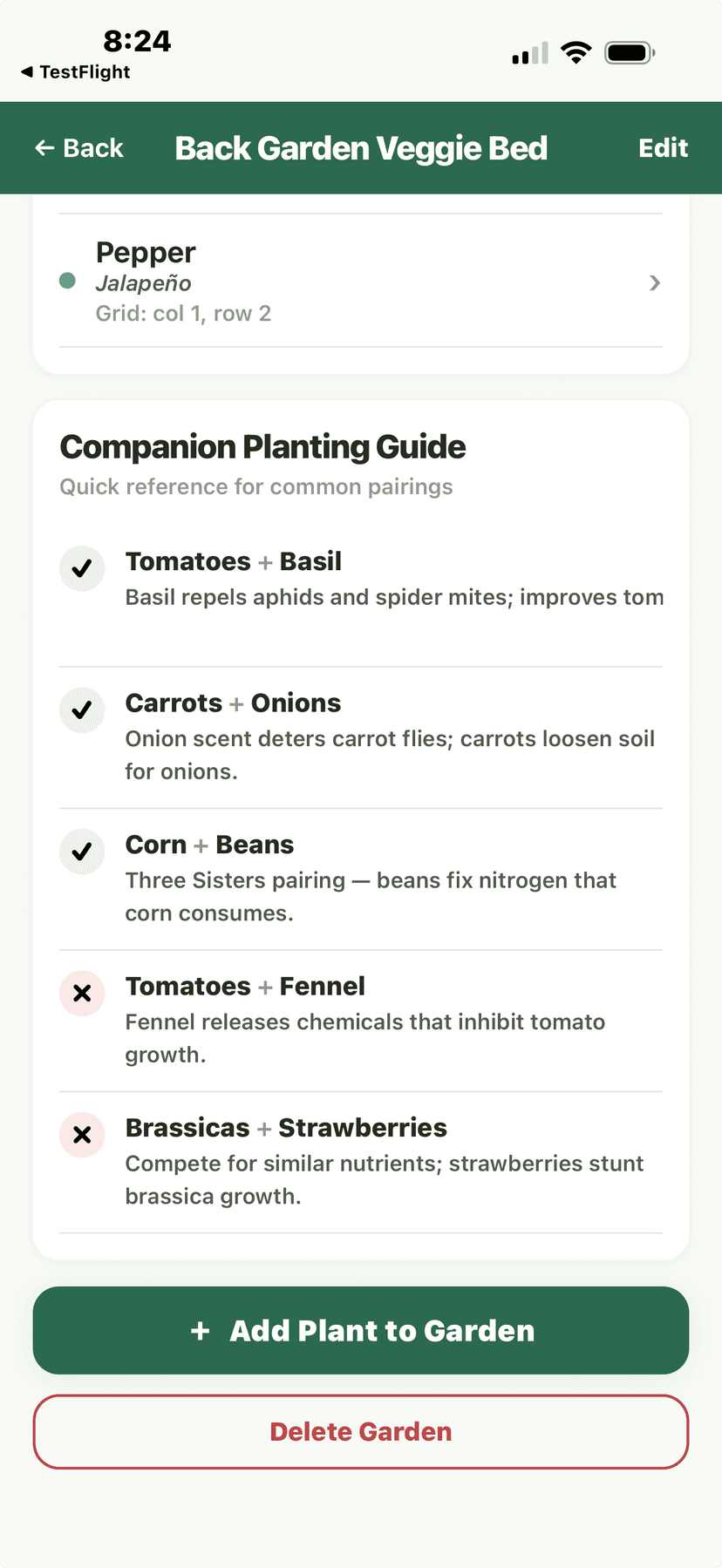
Garden Bed Detail - companion planting, add plant, and delete
📅Planting Calendar
- Open the Garden Planner and tap "Planting Calendar."
- View a month-by-month timeline showing when to start seeds indoors, transplant, direct sow, and harvest.The calendar is personalized to your zip code using your USDA zone and average first/last frost dates.
- Tap any plant on the calendar to see its full planting timeline.Each entry shows: seed starting date, transplant date, days to maturity, expected harvest window, and succession planting intervals.
- Enable calendar notifications to get reminders when it's time to start seeds or transplant.
💡
The planting calendar updates automatically when you add plants to your garden. It accounts for your local frost dates, growing degree days, and the specific variety's days-to-maturity.
Garden Planner - garden list view
Garden Bed Detail - add plant and companion planting
🔄Succession Planting
- In the planting calendar, tap a crop and select "Set Up Succession Planting."
- Choose the interval between sowings (e.g., every 2 weeks for lettuce, every 3 weeks for beans).
- Set the number of successions for the season.Verdix calculates how many successions fit between your last frost date and first fall frost, minus the days-to-maturity for each planting.
- View overlapping harvest windows on the calendar to ensure continuous production.
💡
Succession planting is the key to a continuous harvest. Fast-maturing crops like lettuce, radishes, and beans benefit the most from staggered plantings every 2-3 weeks.
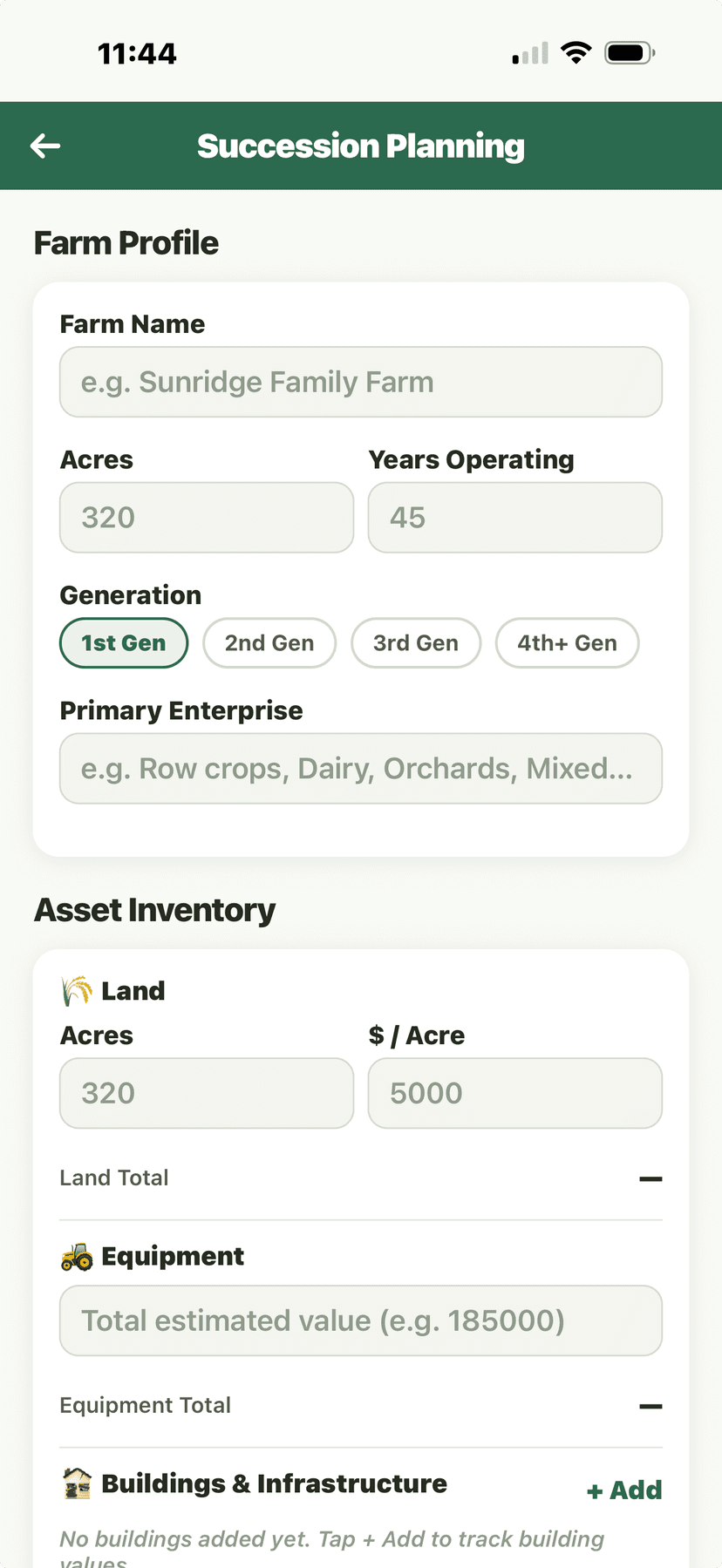
Succession Planning - farm profile with acres, generation, and asset inventory