🪴
Plant Management
Add plants using the POWO database of 1.4M+ species, manage plant profiles, set care schedules, track health scores, and browse the plant encyclopedia.
➕Adding Plants
- Tap the "+ Add Plant" button on your home screen or plant list.
- Search for your plant by common name or scientific name.Verdix connects to the Plants of the World Online (POWO) database, giving you access to over 1.4 million plant species. Type at least 3 characters to search.
- Select your plant from the search results.Each result shows the scientific name, common name, family, and a thumbnail photo when available.
- Fill in plant details: nickname, location (indoor room or outdoor zone), date acquired, pot size, and soil type.
- Take or upload a photo of your plant by tapping the camera icon.
- Tap "Save" to add the plant to your collection.
💡
Use the POWO search to find scientific names for over 1.4 million plant species. If you can't find your exact variety, select the closest species and add variety details in the notes field. All paid tiers include unlimited plants.
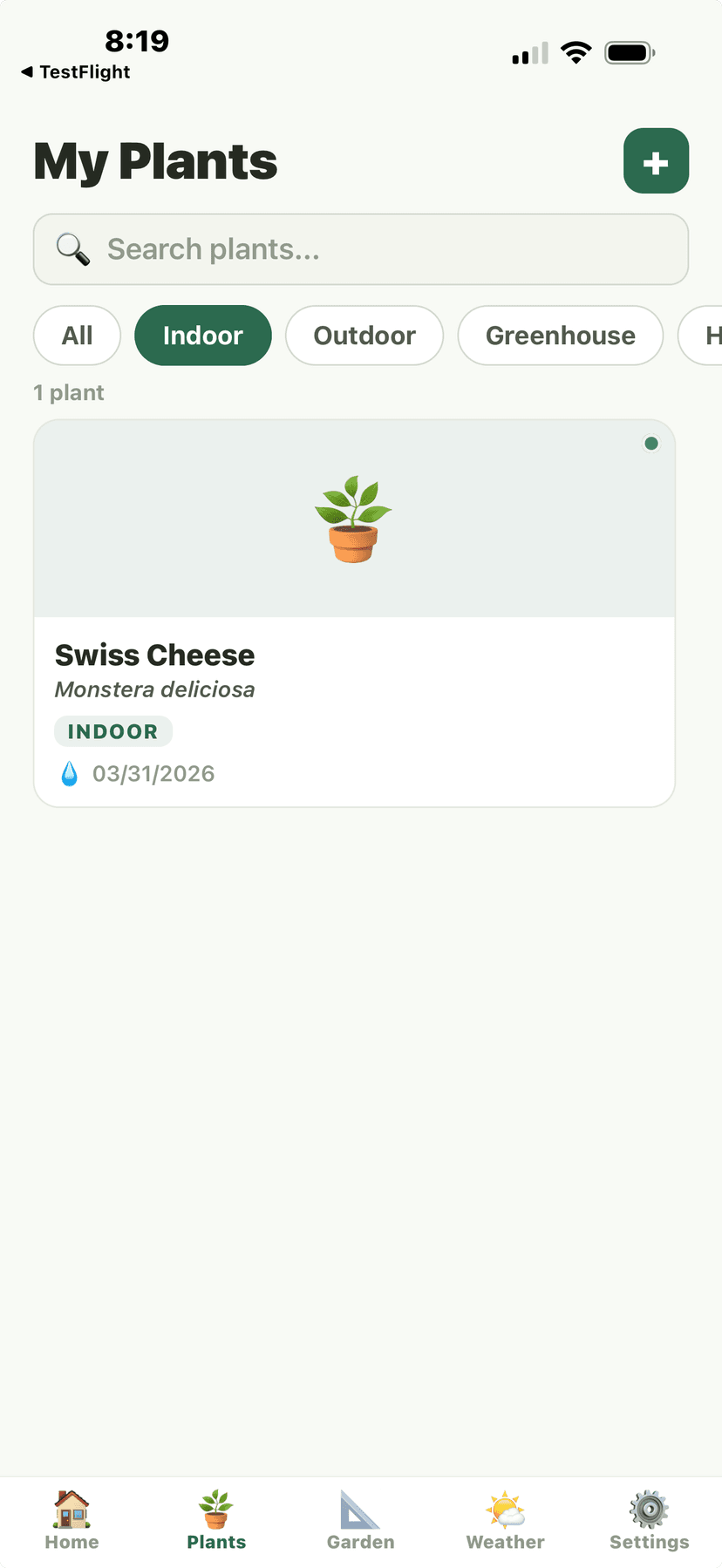
My Plants - Indoor filter, Swiss Cheese plant card
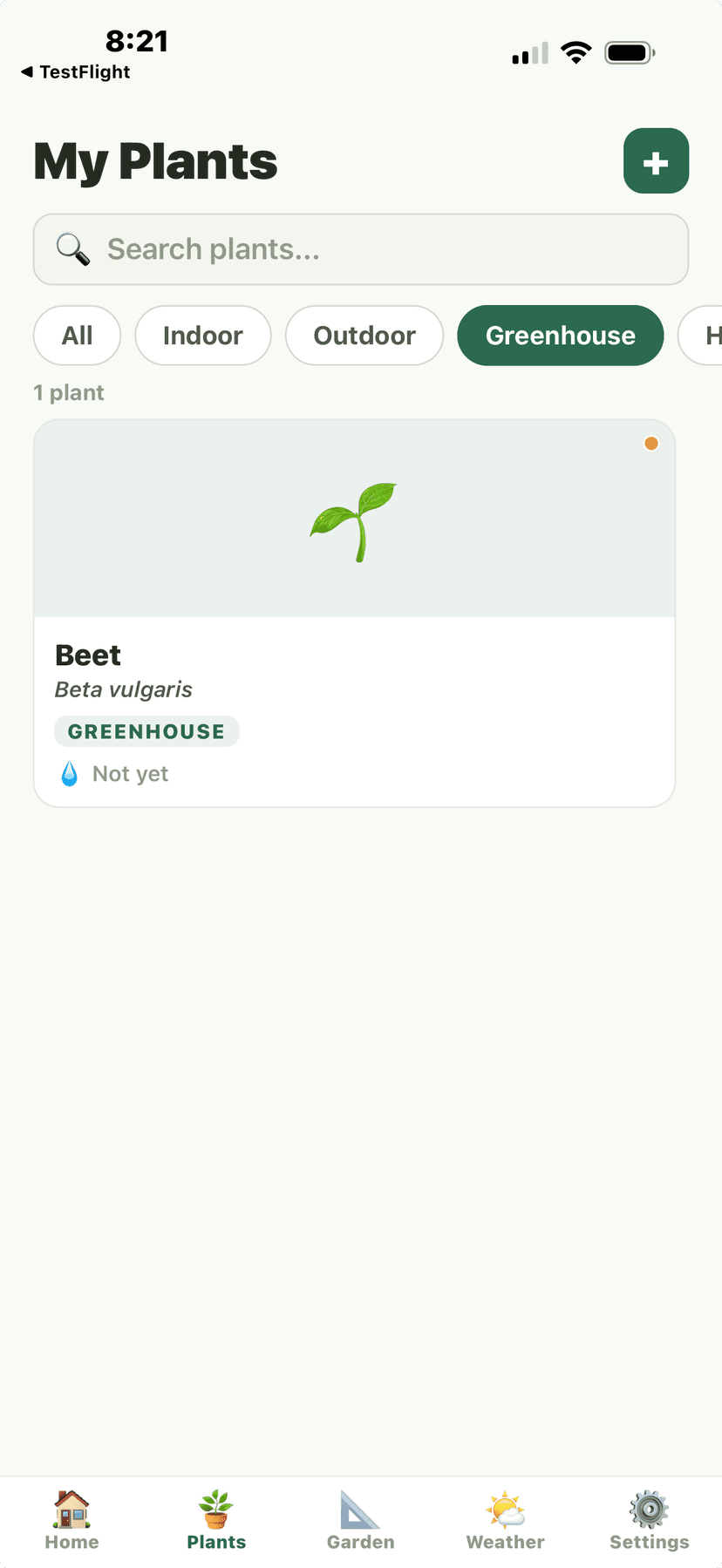
My Plants - Greenhouse filter, Beet card
📸AI Plant Scanner
- Tap the camera icon on the home screen or the "Scan" tab.
- Point your camera at the plant and tap the shutter button.For best results, photograph the whole plant from 2-3 feet away, then a close-up of a leaf. Good lighting helps accuracy.
- Wait for the AI to analyze your photo (usually 2-5 seconds).The scanner can identify plants, diagnose pests and diseases, detect nutrient deficiencies, and even identify seeds and seedlings.
- Review the identification results and tap "Add to My Plants" to save it.
💡
The AI scanner works best with clear, well-lit photos of healthy foliage. For disease diagnosis, photograph the affected area up close.
⚠️
Free tier users get 3 AI scans per day. Grower and above tiers have unlimited scans.
My Plants - Indoor filter with plant cards
My Plants - Greenhouse filter with plant cards
📄Plant Profiles
Each plant has a detailed profile showing its photo, health score, care schedule, growth journal, and environmental preferences. The profile is your central hub for managing everything about that plant.
- Photo gallery with growth timeline
- Health score (0-100) based on care consistency, recent issues, and growth rate
- Care schedule with next watering, fertilizing, pruning, and repotting dates
- Growth journal entries with photos and notes
- Environmental preferences: light, humidity, temperature, soil pH
- Location history and pot size changes
- Disease and pest history with treatment records
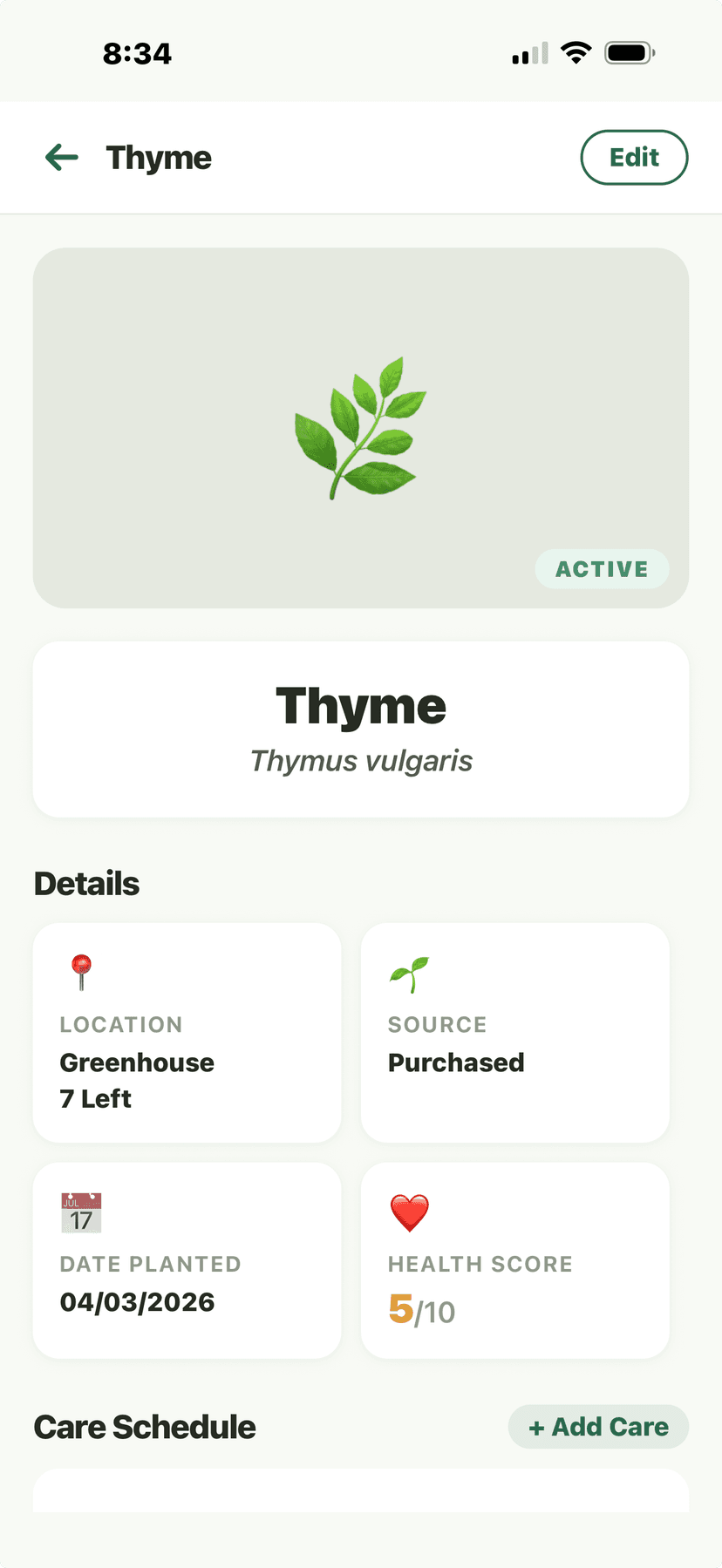
Plant Profile - Thyme details with location, source, health score
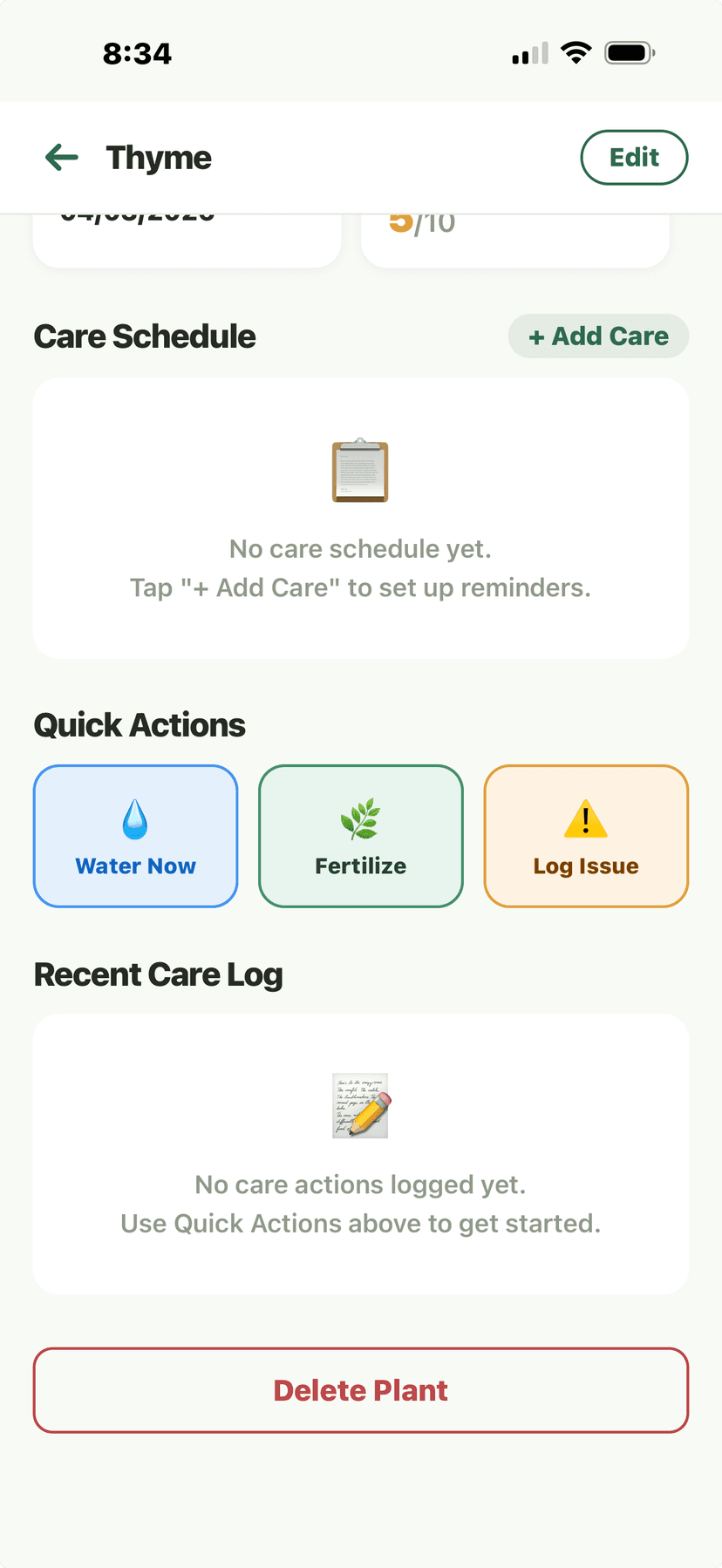
Plant Profile - Thyme care schedule and quick actions
⏰Care Schedules & Reminders
- Open any plant's profile and tap "Care Schedule."
- Set watering frequency based on the smart recommendation or your own preference.Verdix calculates watering needs based on your plant species, pot size, soil type, indoor/outdoor location, current weather, and season. You can override the suggestion.
- Configure fertilizing, pruning, repotting, and misting schedules.
- Enable push notifications for care reminders.Notifications arrive at your preferred time (set in Settings). You can snooze or mark tasks complete from the notification.
- Log completed care tasks by tapping the checkmark next to each task.
💡
Care schedules automatically adjust for seasonal changes. Watering frequency decreases in winter for most species and increases during summer heat waves.
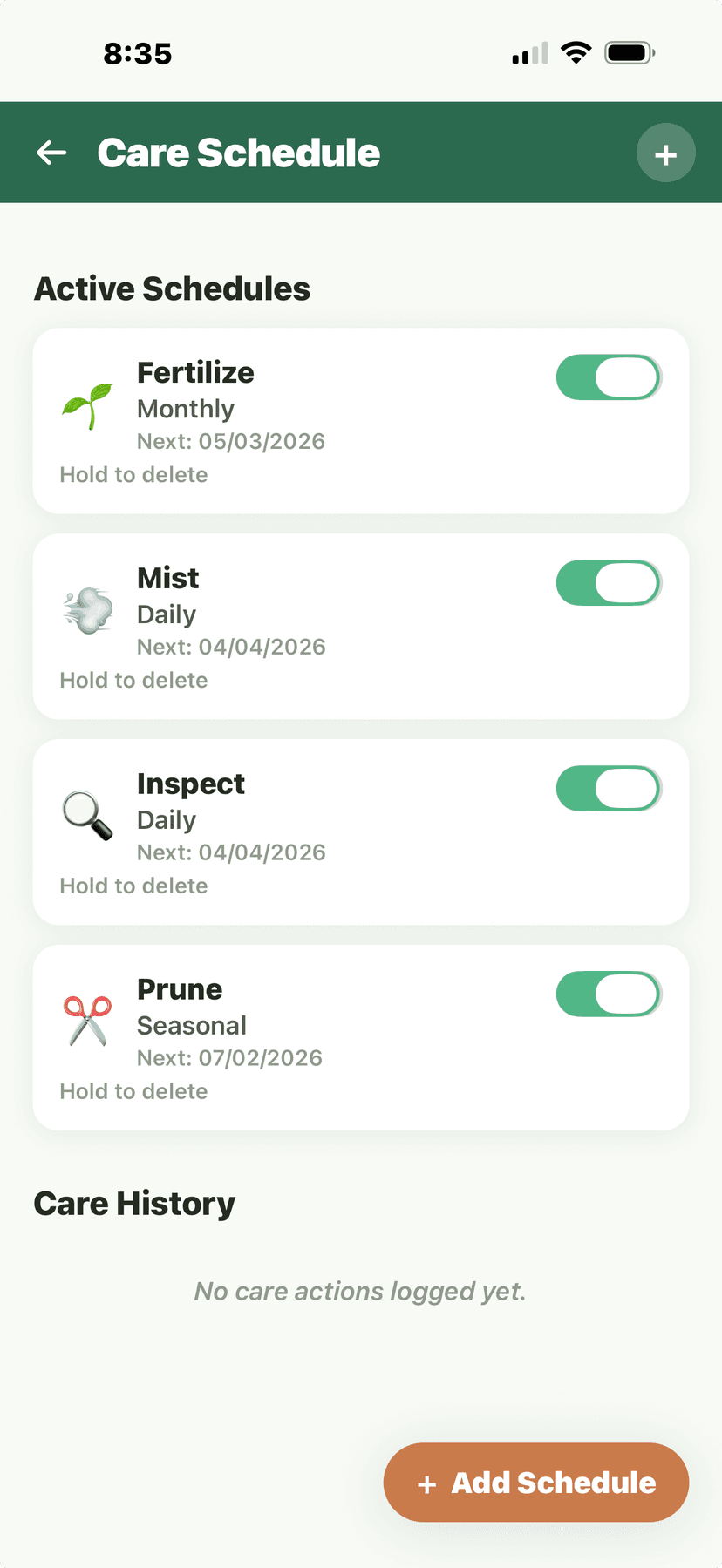
Care Schedule - active schedules and care history
📚Plant Encyclopedia
- Navigate to the Library tab and tap "Plant Encyclopedia."
- Browse by category (Houseplants, Vegetables, Herbs, Trees, Succulents, etc.) or search by name.
- Tap any species to view its full care guide.Each entry includes: light requirements, watering frequency, soil preferences, temperature range, humidity needs, fertilizing schedule, common pests and diseases, companion planting suggestions, and USDA zone compatibility.
- Tap "Add to My Plants" to quickly add a plant from the encyclopedia to your collection.
💡
The encyclopedia covers 45,000+ species with care guides. Entries include companion planting suggestions so you can plan gardens that help each other thrive.
Plant Profile - Thyme details overview
Plant Profile - care schedule and quick actions
🏡Room & Zone Management
- Go to Settings and tap "Rooms & Zones."
- Create indoor rooms (Living Room, Bedroom, Kitchen, Office, etc.) or outdoor zones (Front Yard, Back Garden, Patio, Greenhouse).Each room/zone stores its light level, typical humidity, and temperature range to help personalize care recommendations.
- Assign plants to rooms or zones from the plant profile or drag them in the room view.
- View all plants in a room/zone at once to manage care tasks by location.
💡
Setting accurate light levels for each room helps Verdix give better watering and fertilizing recommendations. South-facing windows get the most light in the Northern Hemisphere.
My Plants - Indoor filter showing room-based plant view