⚙️
Settings & Account
Manage your profile, notification preferences, data export and import, subscription, and offline mode.
👤Profile & Preferences
- Tap the gear icon in the top right or navigate to the Settings tab.
- Edit your profile: display name, photo, growing zone, and location.
- Set your preferred units: imperial (feet, pounds, Fahrenheit) or metric (meters, kilograms, Celsius).
- Choose your date format preference.
- Update your growing interests to adjust which features are highlighted on your dashboard.
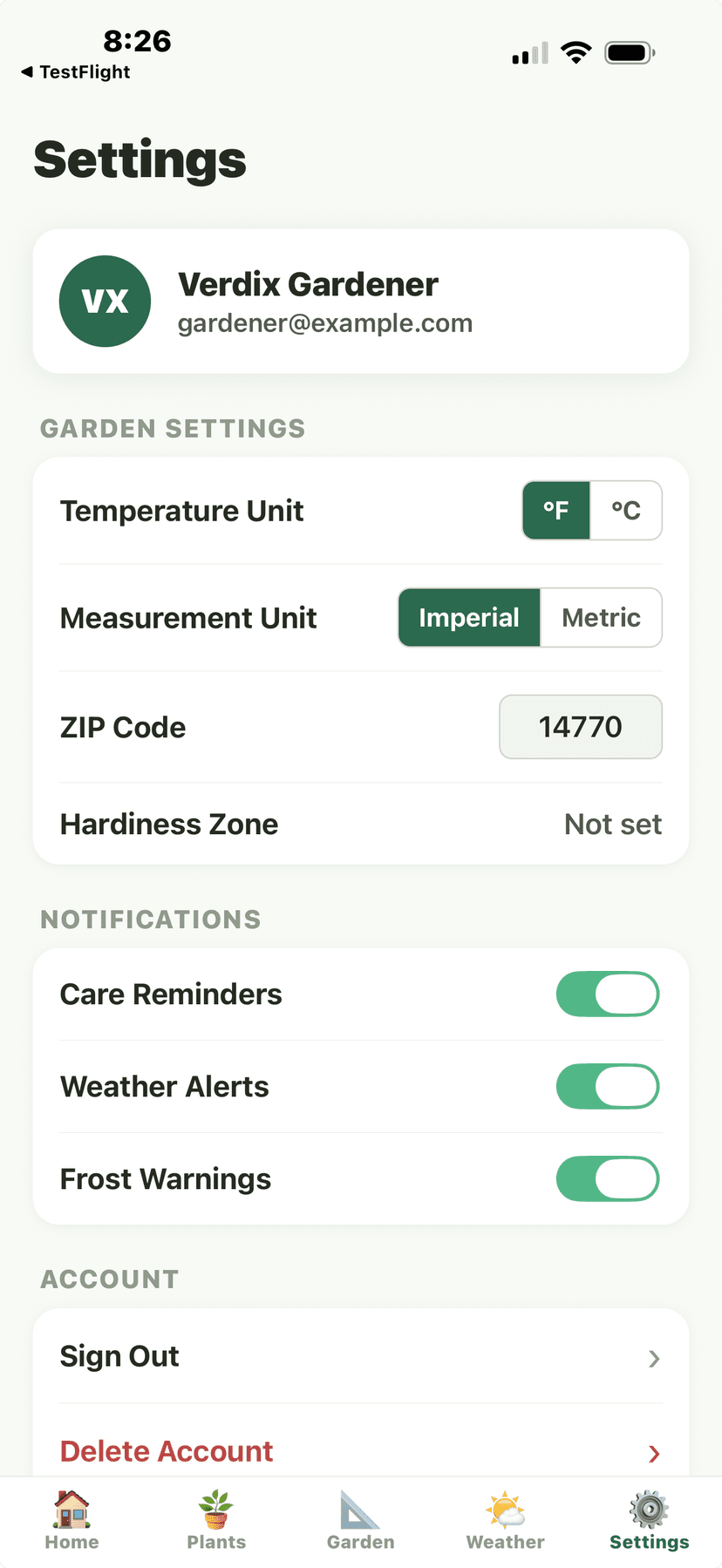
Settings - profile, garden settings, notifications, account
🔔Notification Settings
- In Settings, tap "Notifications."
- Toggle notification categories on or off.Categories include: Care Reminders, Weather Alerts, Frost Alerts, Harvest Reminders, Community Replies, Seed Starting Reminders, Equipment Maintenance, and Compliance Deadlines.
- Set your preferred notification time for care reminders.Choose when you want daily watering reminders: Morning (7 AM), Midday (12 PM), Evening (6 PM), or Custom time.
- Set reminder frequency: every task, daily digest, or weekly summary.
💡
If you're getting too many notifications, switch to "Daily Digest" mode. You'll get one notification each morning with all your care tasks for the day instead of individual alerts.
Settings - notification preferences section
📤Data Export & Import
- In Settings, tap "Data."
- Tap "Export" to download your complete data.Export formats: CSV (for spreadsheets), JSON (for developers), or PDF (for printing). Choose which data to include: plants, gardens, harvests, soil tests, financial records, etc.
- Tap "Import" to bring data from another gardening app or spreadsheet.Verdix supports CSV import with column mapping. Upload your file and match columns to Verdix fields (plant name, species, location, etc.).
- Use "Backup" to create a complete backup of your account data.Backups are stored securely and can be restored if you switch devices or reinstall the app.
💡
Export your data periodically as a backup. CSV exports open in Excel, Google Sheets, or any spreadsheet app for additional analysis.
⚠️
Importing data overwrites matching records. Always create a backup before importing to avoid accidental data loss.
Settings - data export and account management
💳Subscription Management
- In Settings, tap "Subscription."
- View your current plan, billing cycle, and next renewal date.
- Tap "Change Plan" to upgrade or downgrade.Upgrades take effect immediately. Downgrades take effect at the end of your current billing period — you keep your current tier's features until then.
- Tap "Manage Subscription" to be redirected to your app store's subscription management.Apple and Google manage all billing. Verdix does not store payment information. To cancel, use your device's subscription settings.
💡
If you cancel your subscription, you keep access to all features through the end of your billing period. After that, your account becomes read-only — your data is preserved, but you'll need to resubscribe to add new entries or use the AI scanner.
Settings - subscription and account section
📴Offline Mode
- Offline mode activates automatically when you lose internet connection.A small banner at the top of the screen indicates offline status. All your data and photos are stored locally on your device.
- Continue using Verdix normally — all data entry works offline.
- When you regain connectivity, Verdix automatically syncs your data.A sync indicator shows the upload progress. If there are conflicts (e.g., the same record was edited on two devices), Verdix shows a conflict resolution dialog.
Verdix is designed for offline-first operation — critical because 33%+ of rural US areas lack reliable broadband. All core features work without an internet connection.
- Add and edit plants, log harvests, and record soil tests offline
- View care schedules and reminders without internet
- Take and store photos locally until sync is available
- Access your plant encyclopedia entries that have been previously viewed
- Queue all changes for automatic sync when connectivity returns
- Conflict resolution for multi-device edits when you reconnect
💡
If you know you'll be working in an area without signal, make sure to open the app while on Wi-Fi first so it can cache the latest data and any recently viewed encyclopedia entries.
Settings - offline mode and sync options