💬
Messaging Your Vet
Send messages and photos to your connected vet, view read receipts, and access emergency contact info.
ℹ️Before You Start
AniLedger messaging connects you directly with your veterinary practice. Before sending your first message, you'll see a consent screen explaining:
- Messaging is NOT for emergencies — call your vet for urgent care
- Response times may vary — this is not a real-time emergency service
- A valid veterinarian-client-patient relationship (VCPR) must exist
- Messages are stored securely and encrypted in transit
- You can report inappropriate messages and block users
⚠️
If your pet is experiencing a medical emergency, do NOT wait for a message reply. Call your vet or an emergency animal hospital immediately.
🔗Connecting to Your Vet
- From an animal's profile, tap "Message Vet" or "Connect to Vet."
- If you're not yet connected to a vet practice, tap "Invite Vet."
- Enter your vet's email or share the invite link.Your vet will receive an invitation to join AniLedger and connect with your animal's records.
- Once your vet accepts the connection, the "Message Vet" button becomes active.
💡
Ask your vet if they already use AniLedger — they may have a QR code flyer in their waiting room that you can scan to connect instantly.
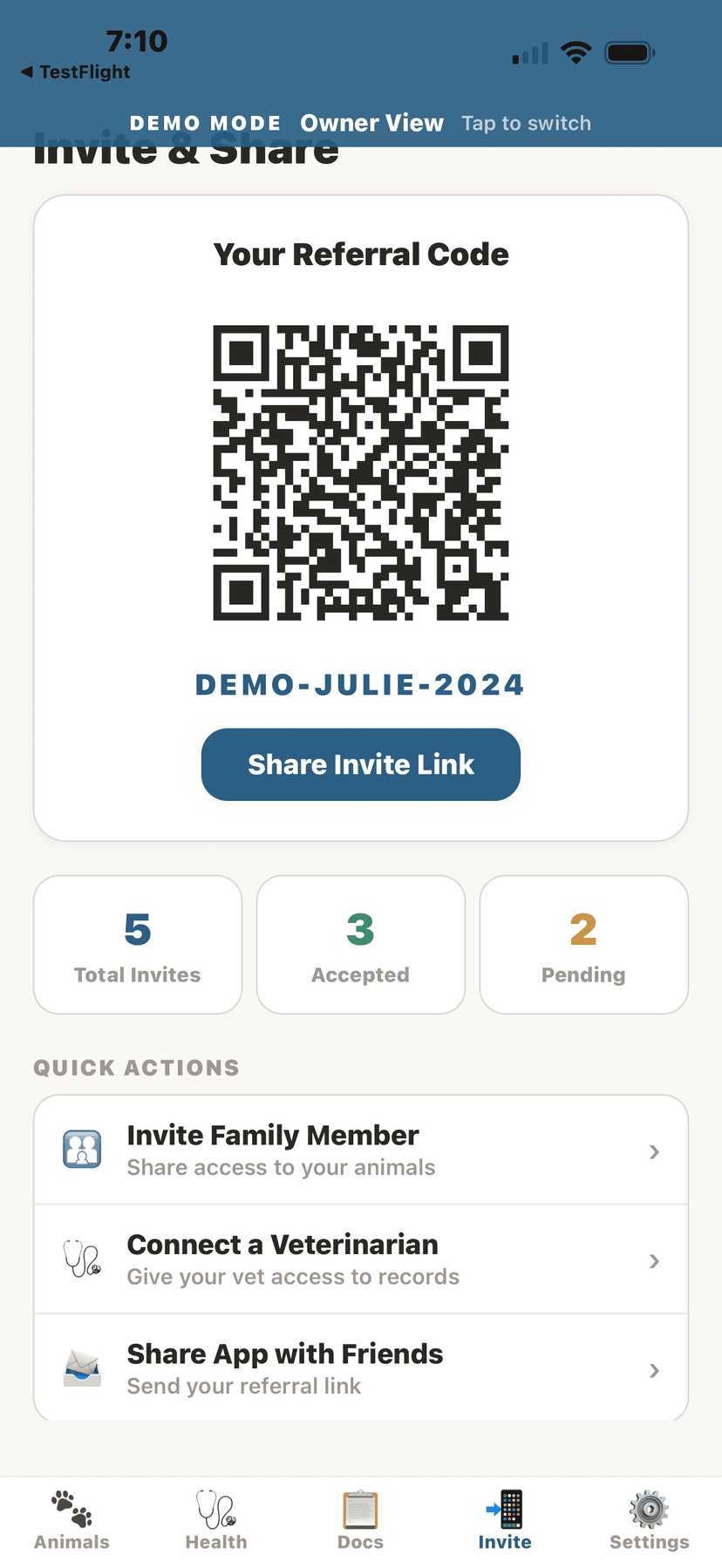
Scan QR to connect with your vet
✉️Sending Messages
- Tap "Message Vet" from any connected animal's profile.
- Type your message in the text field at the bottom.
- Tap the send button (arrow icon) to send.
- Your message appears in a chat bubble on the right side.
📷Sending Photos
- In the messaging screen, tap the camera icon next to the text input.
- Choose a photo from your library.
- Add an optional text message to go with the photo.
- Tap send — the photo is delivered with your message.
💡
Photos are great for showing your vet a wound, rash, or behavioral concern between office visits.
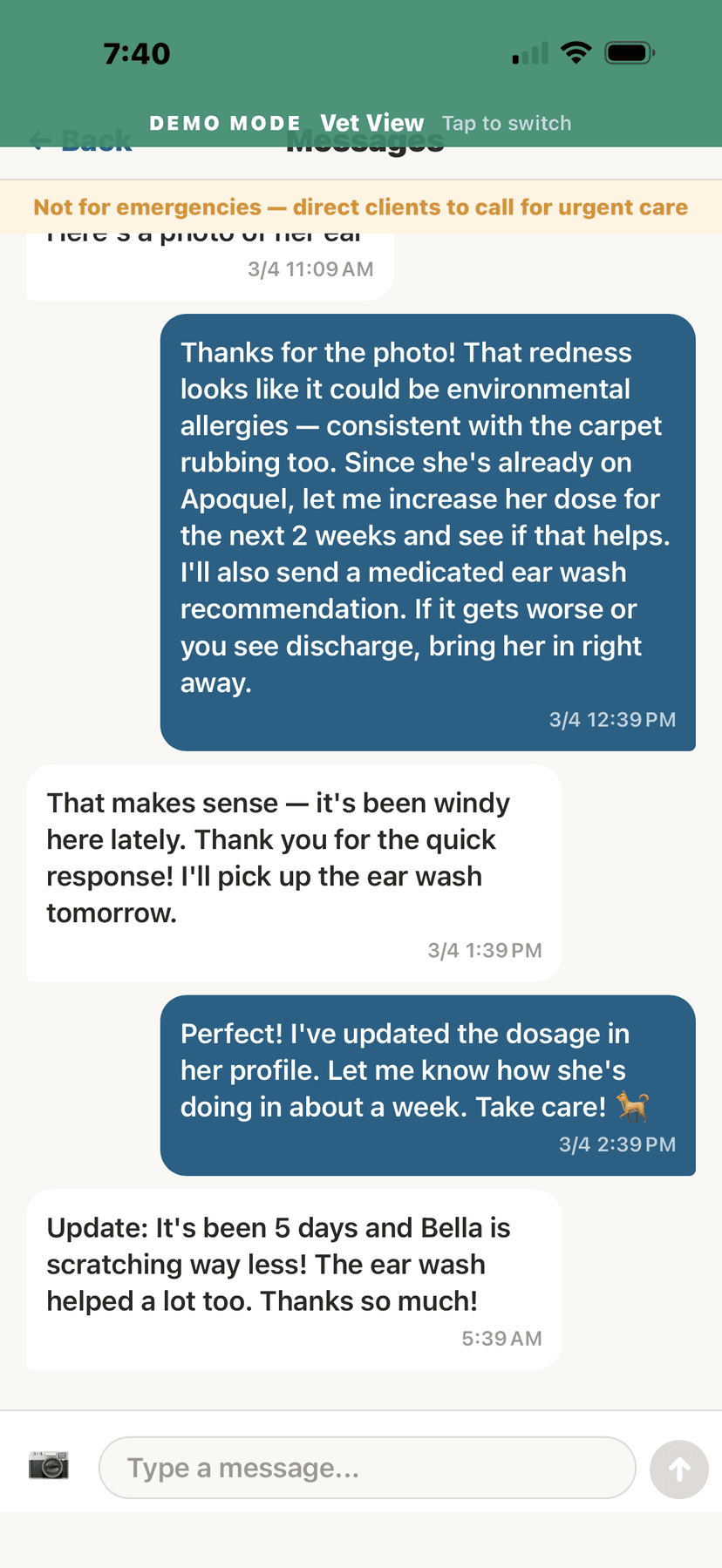
Full vet-owner conversation about treatment
✅Read Receipts & Status
AniLedger shows message delivery status:
- ✓ (single check) — Message sent
- ✓✓ (double check) — Message read by recipient
🟢Practice Availability
At the top of the messaging screen, you'll see your vet practice's current availability:
- 🟢 Available — Staff are on duty and checking messages
- 🟡 Away — Responses may be delayed
- 🔴 Off Duty — The practice is closed; emergency contact info is shown
💡
When the practice is off duty, an emergency contact number is displayed so you can reach urgent care.
🚩Reporting & Blocking
- Long-press on any message to see options.
- Choose "Report Message" to flag inappropriate content.
- Choose "Block User" to stop receiving messages from that person.
- You can delete your own messages by long-pressing and selecting "Delete."
🔔Unread Message Notifications
When your vet sends a reply, you'll see a red badge on the "Message Vet" button in your animal's profile showing the number of unread messages. The badge clears automatically when you open and read the conversation.