🩺
Vet Portal Guide
Complete guide for veterinary practices: managing clients, prescribing, clinical notes, dosage calculator, team management, and more.
🏥Setting Up Your PracticeVet Only
- Select "Veterinarian" during onboarding.
- Enter your practice name (required).
- Add optional details: license number, address, phone, email, website.
- Choose your subscription tier (Vet Solo, Clinic, or Hospital).
💡
Your practice profile is visible to connected clients. Keep it accurate so pet owners can find and contact you.
👥Client ManagementVet Only
- The Clients tab shows all connected pet owners.
- Each client card shows their name, number of animals, and species.
- Tap a client to see all their animals connected to your practice.
- Tap any animal to view the owner's health records, medications, and documents.
Clients connect to your practice by scanning a QR code (from your printed flyer), receiving an email invitation, or searching for your practice in AniLedger.
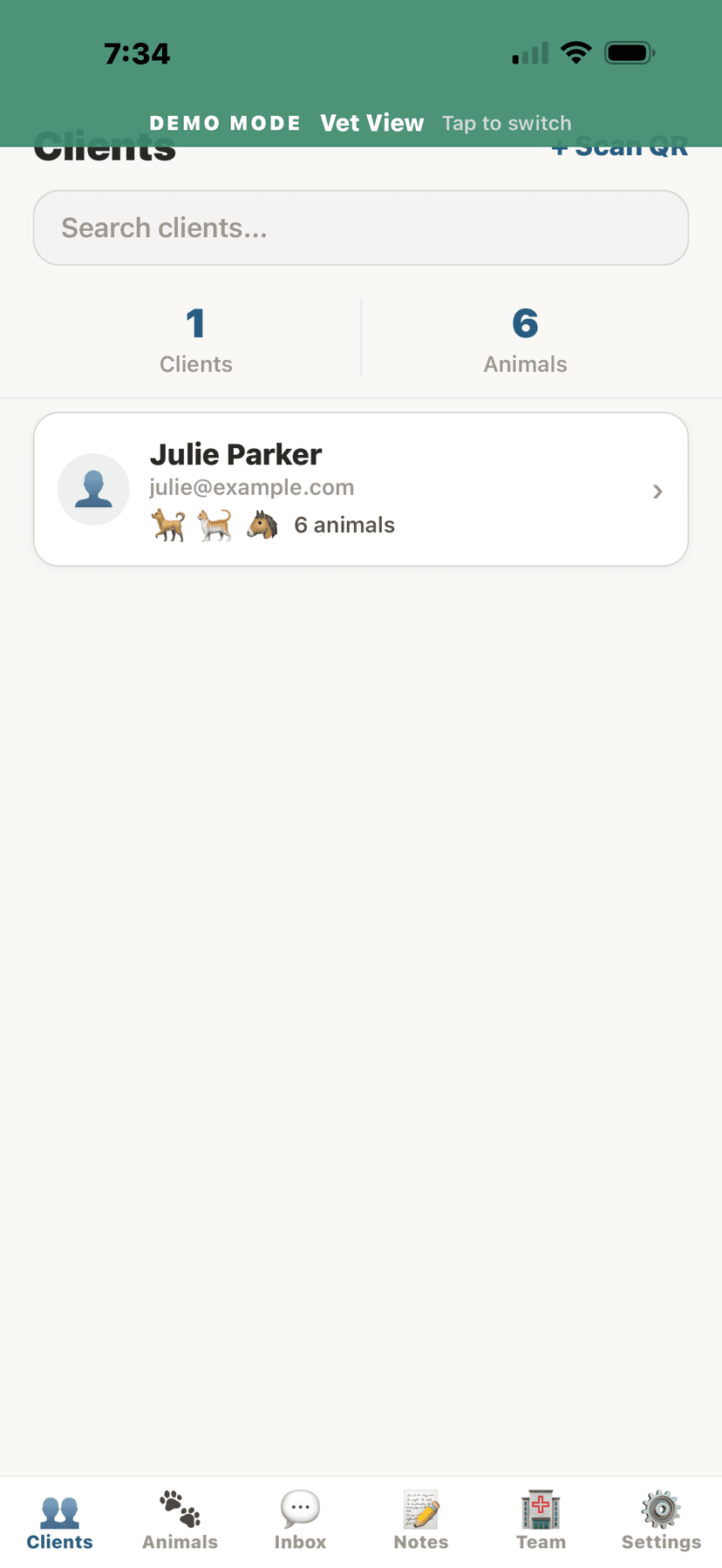
Vet client dashboard
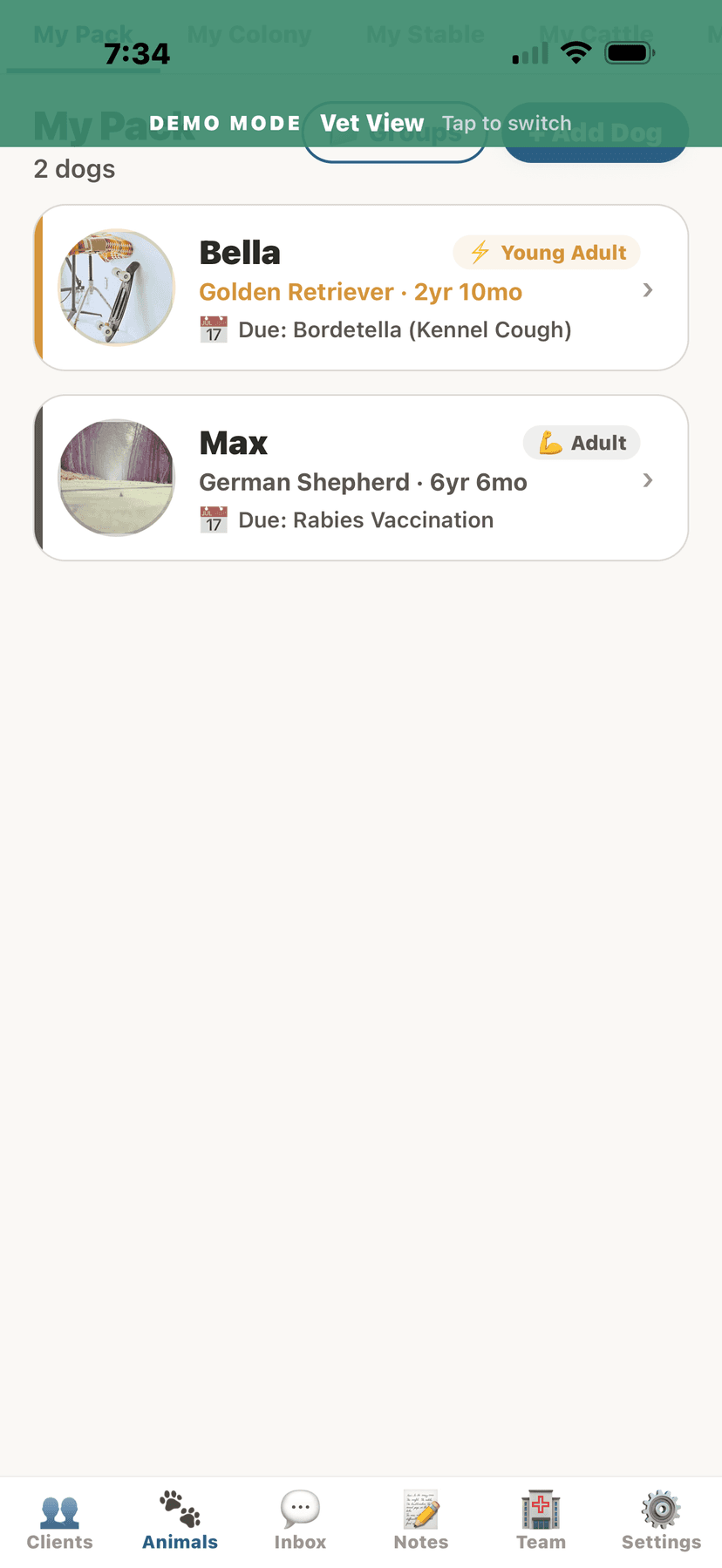
Animals list in vet view
📲Client Connection Flyer (QR Code)Vet Only
- Navigate to Settings or use the "Print Poster" option.
- A printable flyer is generated with your practice name and a unique QR code.
- Print and display the flyer in your waiting room, exam rooms, or reception area.
- Clients scan the QR code with their phone camera, which opens AniLedger and connects them to your practice.
💡
This is the easiest way to onboard clients. No emails to exchange, no codes to type — one scan and they're connected.
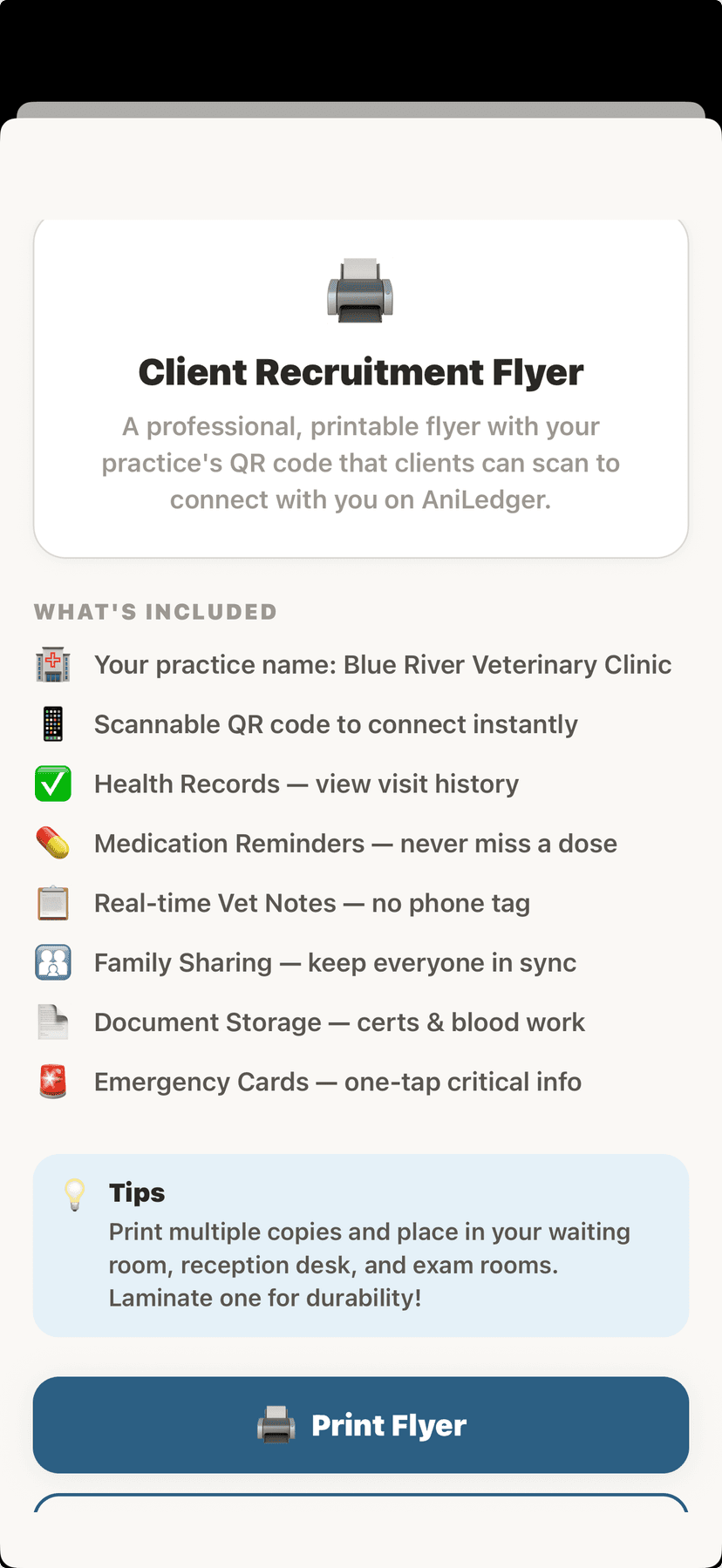
Printable client connection flyer
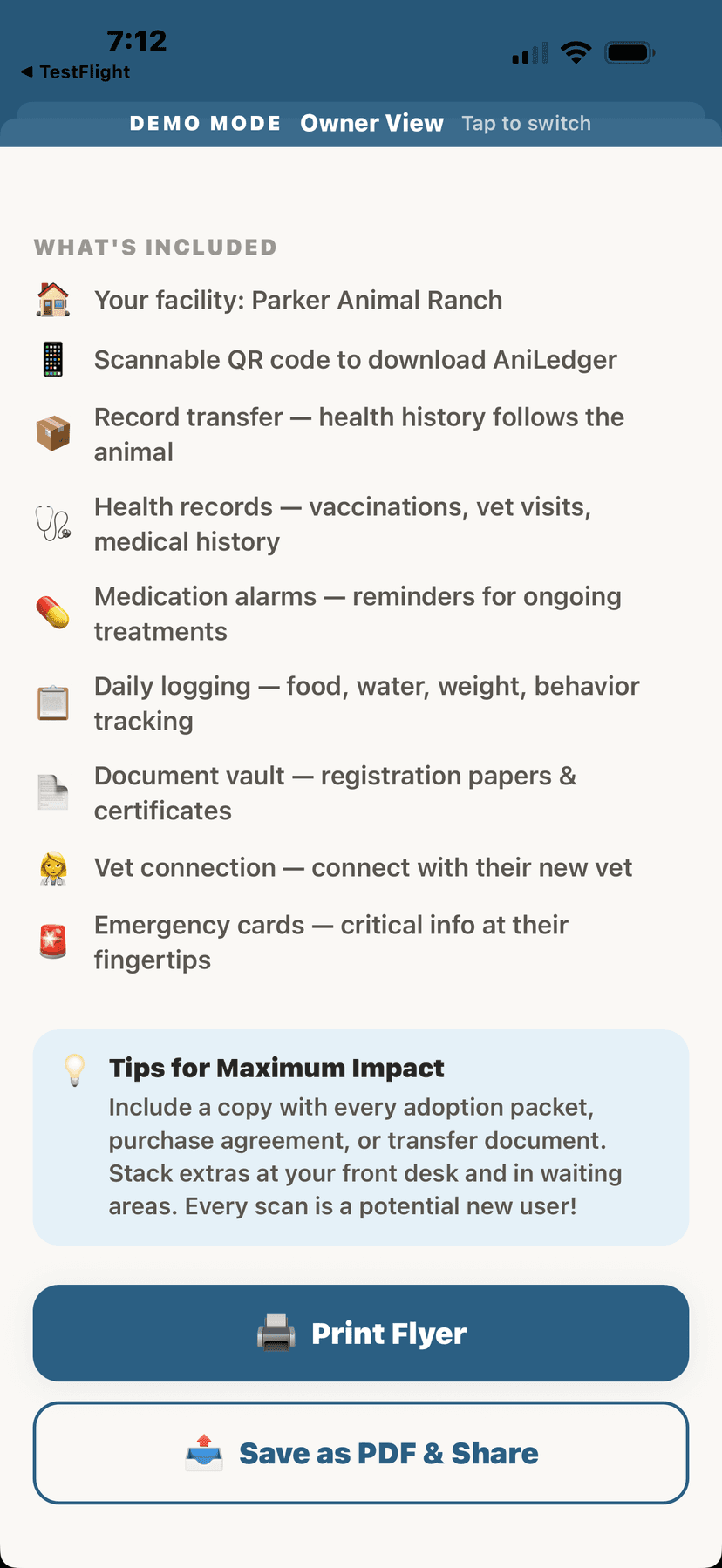
Share or print the flyer
💊Prescribing MedicationsVet Only
- From a patient's profile, tap "Prescribe Medication."
- Search the 80+ drug database or enter a custom medication name.
- The dosage calculator auto-fills based on the animal's weight and species.
- Adjust the dose, frequency, and duration as needed.
- Add withdrawal period information (especially important for livestock).
- Tap "Prescribe" to send the prescription to the owner's AniLedger.
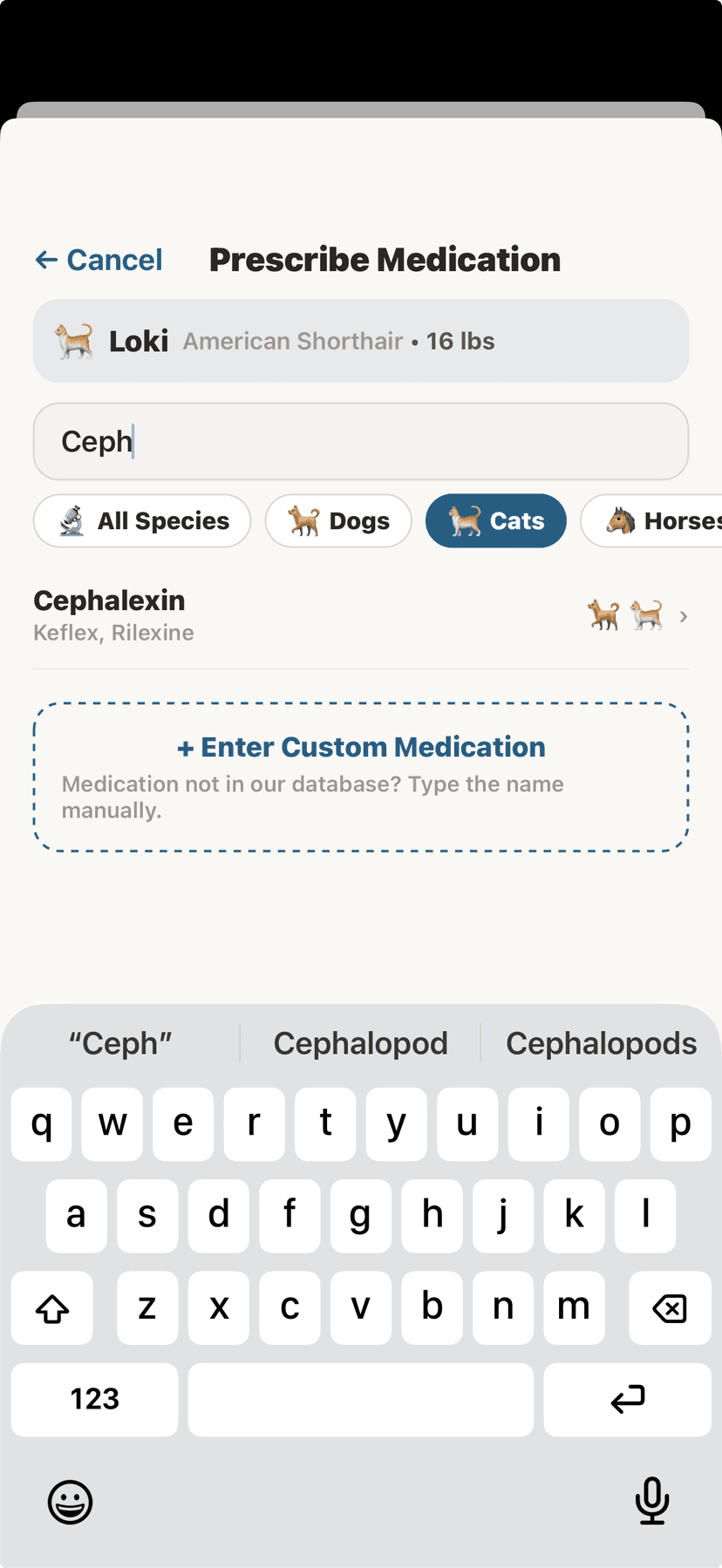
Search drugs by name with species icons
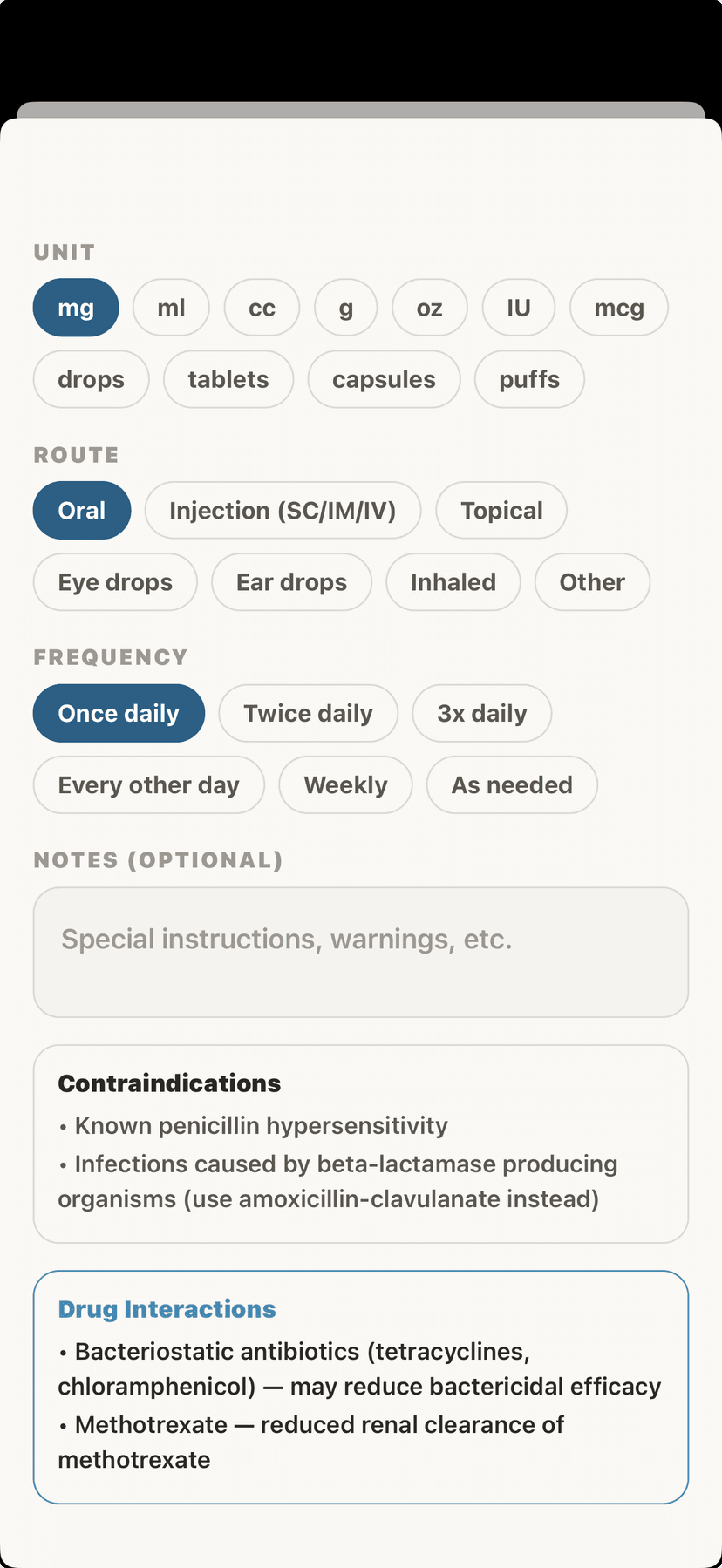
Prescribe form with unit, route, and frequency
🧮Dosage CalculatorVet Only
AniLedger includes a built-in dosage calculator with 80+ drugs pre-configured with species-specific dosing guidelines.
- Weight-based auto-calculation
- Species-specific dose ranges (dog, cat, horse, cattle, etc.)
- Multiple route options (oral, IV, IM, SQ, topical)
- Withdrawal period tracking for food animals
- Dosage adjustment tools for individual patients
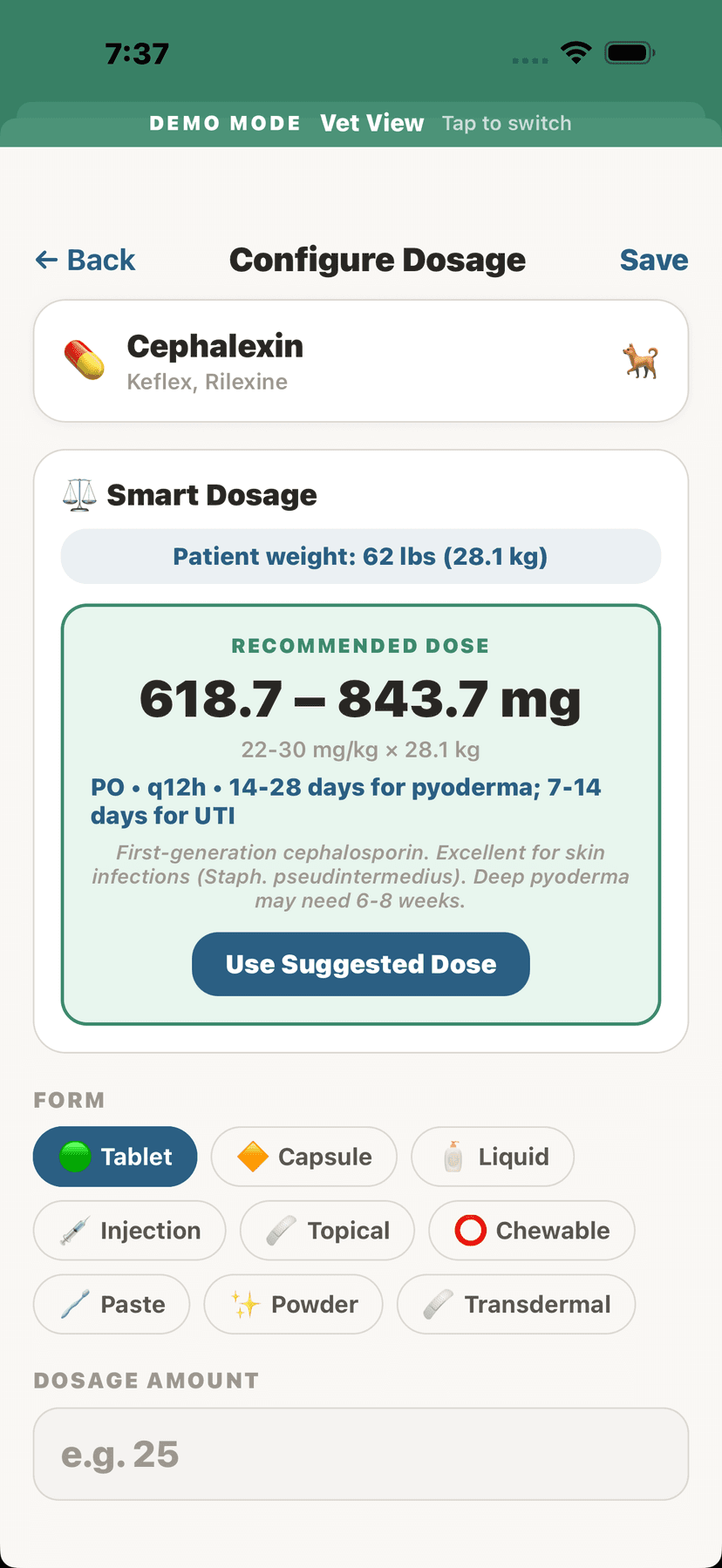
Smart dosage calculator with weight-based recommendation
📝SOAP NotesVet Only
- From a patient's profile, tap "Add Note."
- SOAP format is pre-structured with four sections:S (Subjective) — Owner's description of the problem. O (Objective) — Your exam findings, vitals, test results. A (Assessment) — Diagnosis or differential diagnoses. P (Plan) — Treatment plan, medications, follow-up.
- Fill in each section. You can also add tags and mark the note as urgent.
- Tap "Save" — the note is recorded and optionally shared with the pet owner.
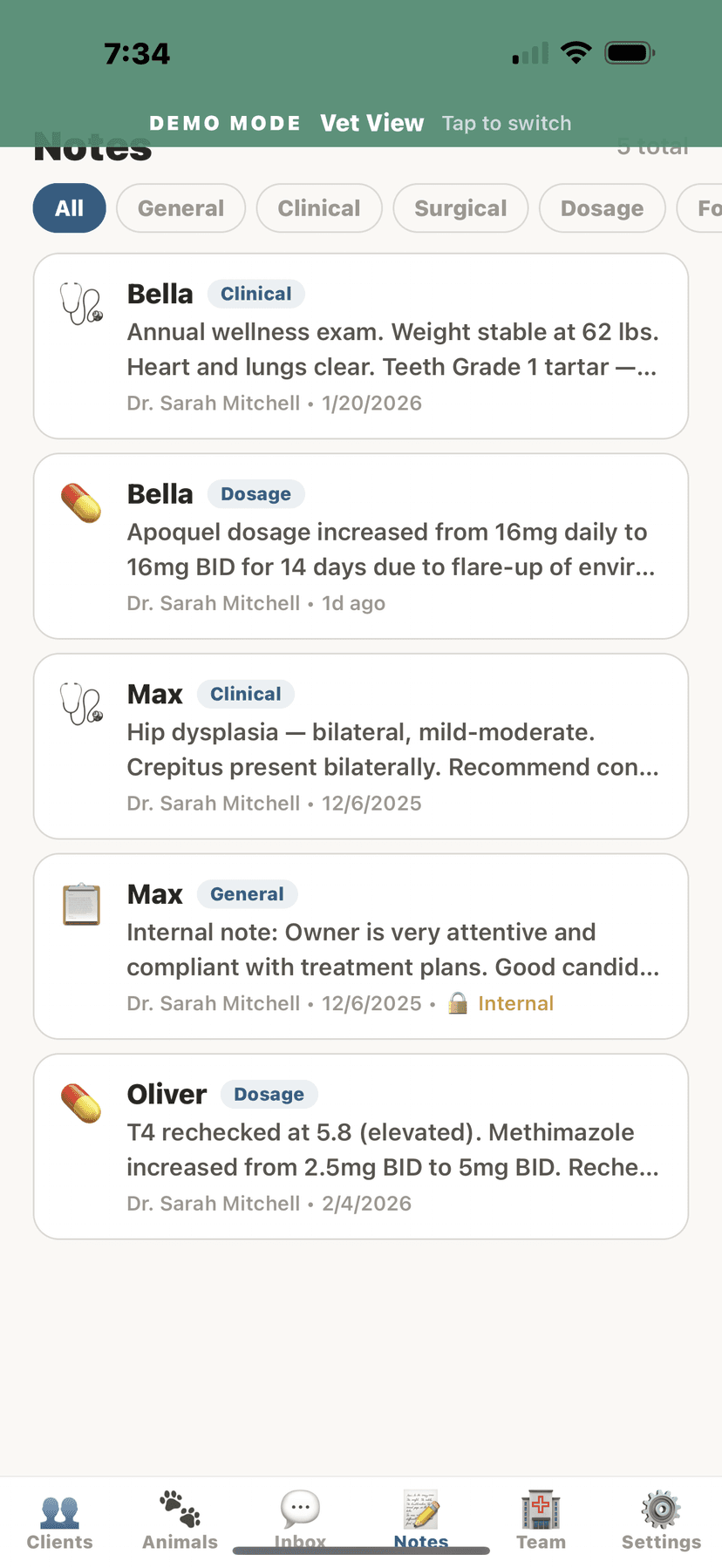
SOAP notes filtered by type
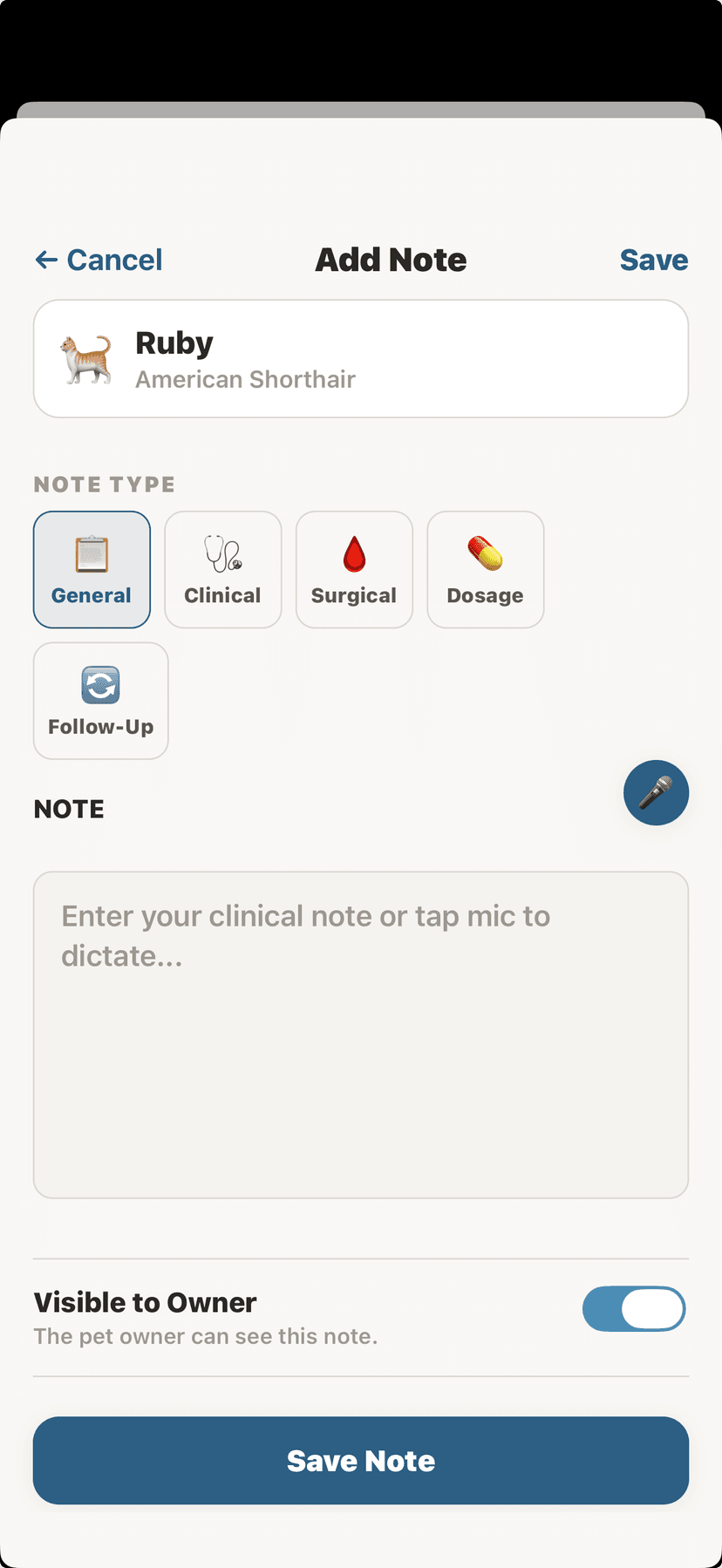
Add clinical note form
📋Care Protocols & Discharge InstructionsVet Only
- Go to the Care Protocol Builder (accessible from patient profiles or the main menu).
- Create a reusable care plan: name it, add step-by-step instructions, medications, and follow-up dates.
- Apply the protocol to any patient — it auto-populates their care instructions.
- Discharge instructions can be sent directly to the owner's AniLedger app.
💡
Build protocols once, use them many times. Perfect for common procedures like spay/neuter recovery, dental post-op, or vaccination series.
📨Inbox & MessagingVet Only
- The Inbox tab shows all client conversations sorted by most recent.
- Unread messages show a red badge with the count.
- Tap a conversation to open the chat and reply.
- To start a new conversation, tap "+ New" in the inbox header.Search for any connected animal by name or owner name, then tap to open a chat.
⚠️
The emergency banner at the top of every chat reminds you: "Not for emergencies — direct clients to call for urgent care." This protects both your practice and the animal.
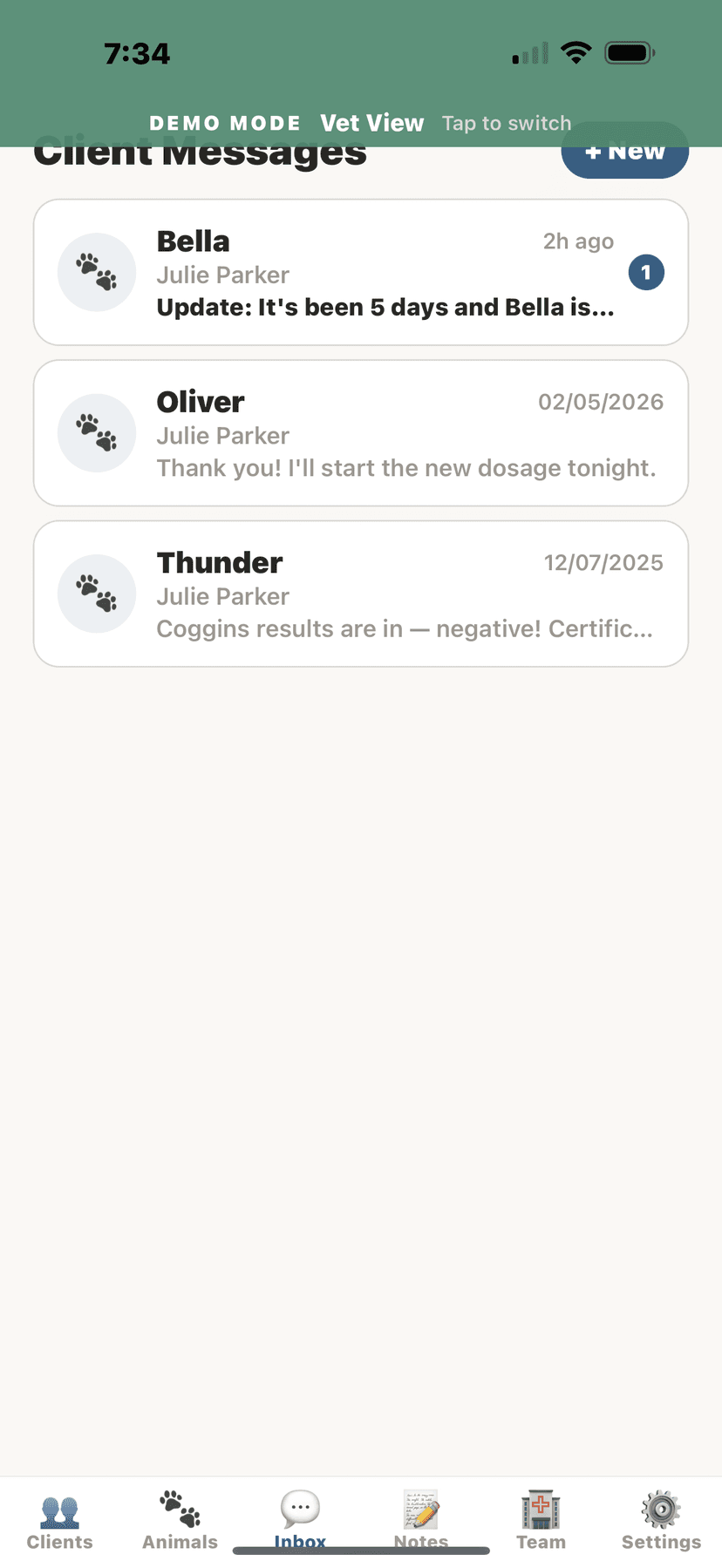
Client message inbox
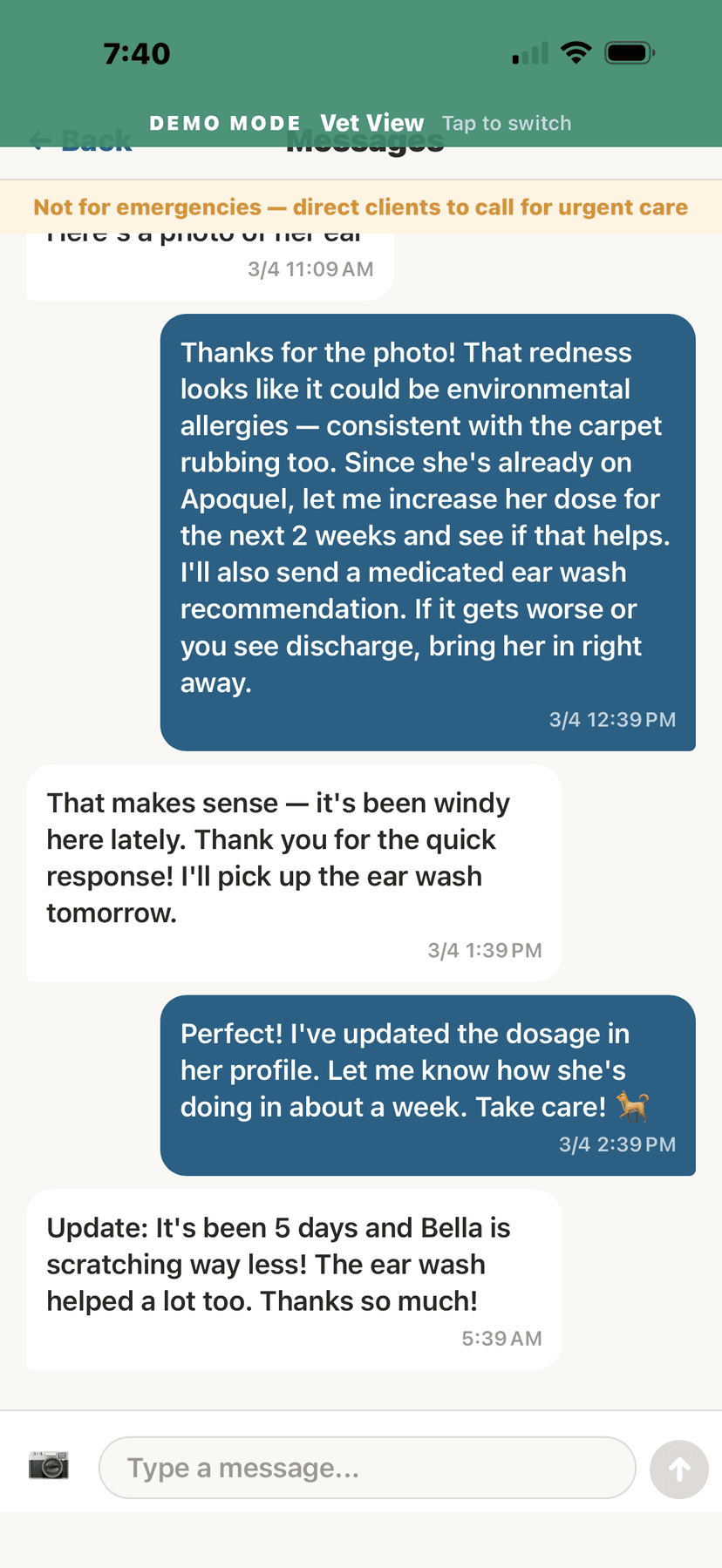
Vet-owner conversation about treatment
👨⚕️Team ManagementVet Only
- The Team tab shows all staff members in your practice.
- Each member has a role: Lead Vet, Associate Vet, Vet Tech, or Receptionist.
- Tap a team member to view/edit their profile, change their availability status, or update their credentials.
- Set availability status for each team member:🟢 Available — On duty and accepting messages. 🟡 Away — Temporarily unavailable (add a custom message like "Back at 2pm"). 🔴 Off Duty — Not on duty today.
- To invite a new team member, tap "Invite" and enter their email.
💡
The practice owner can manage availability for all team members, not just themselves.
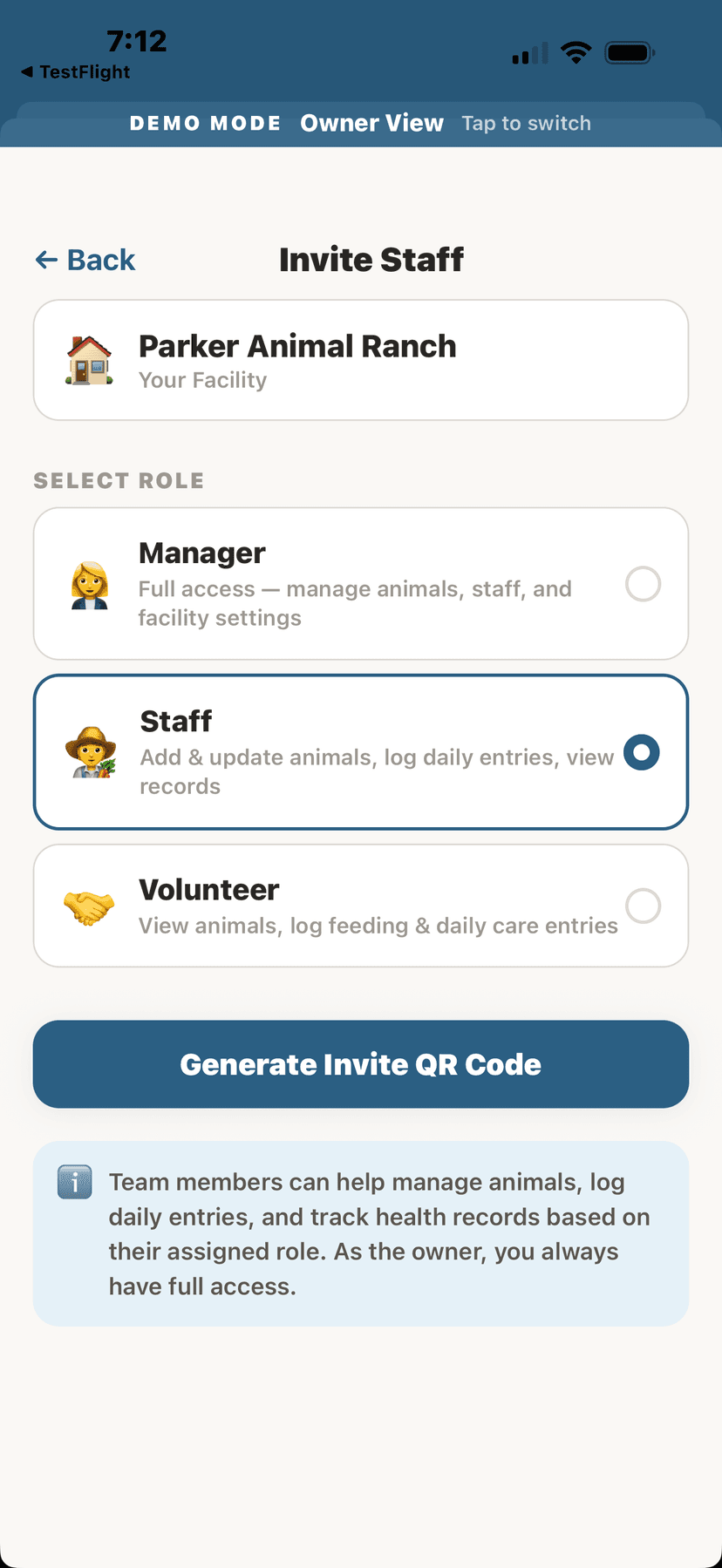
Invite staff with role selection
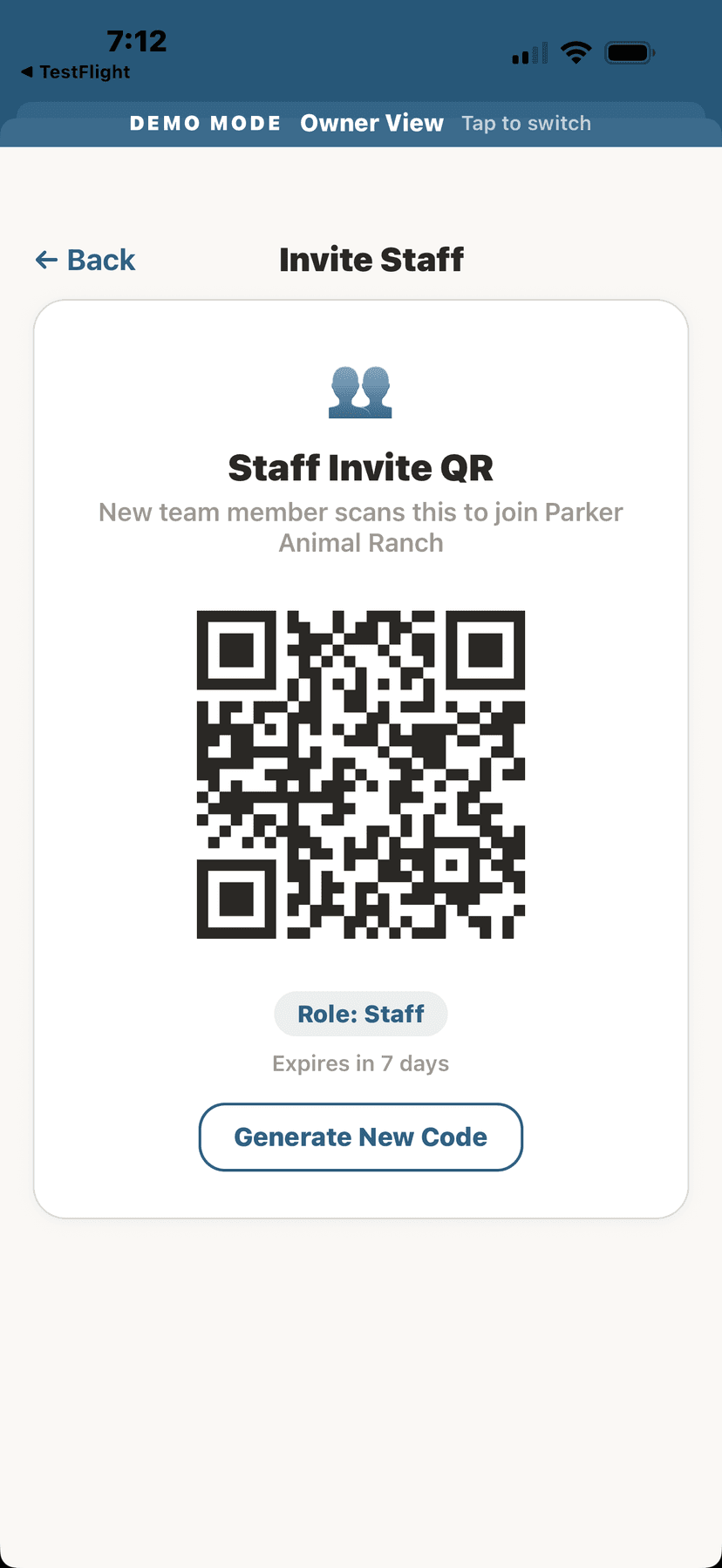
Staff invite QR code
📊Medication Compliance TrackingVet Only
See which patients are taking their medications as prescribed and which ones might be falling behind. The compliance dashboard shows:
- Adherence rate per patient
- Missed doses flagged in red
- Refill status and timing
- Last dose logged date
🚨Setting Emergency Contact InfoVet Only
- Go to Settings and tap "Emergency Contact."
- Enter the after-hours emergency clinic name and phone number.
- This information is displayed to pet owners when your practice status is "Off Duty."
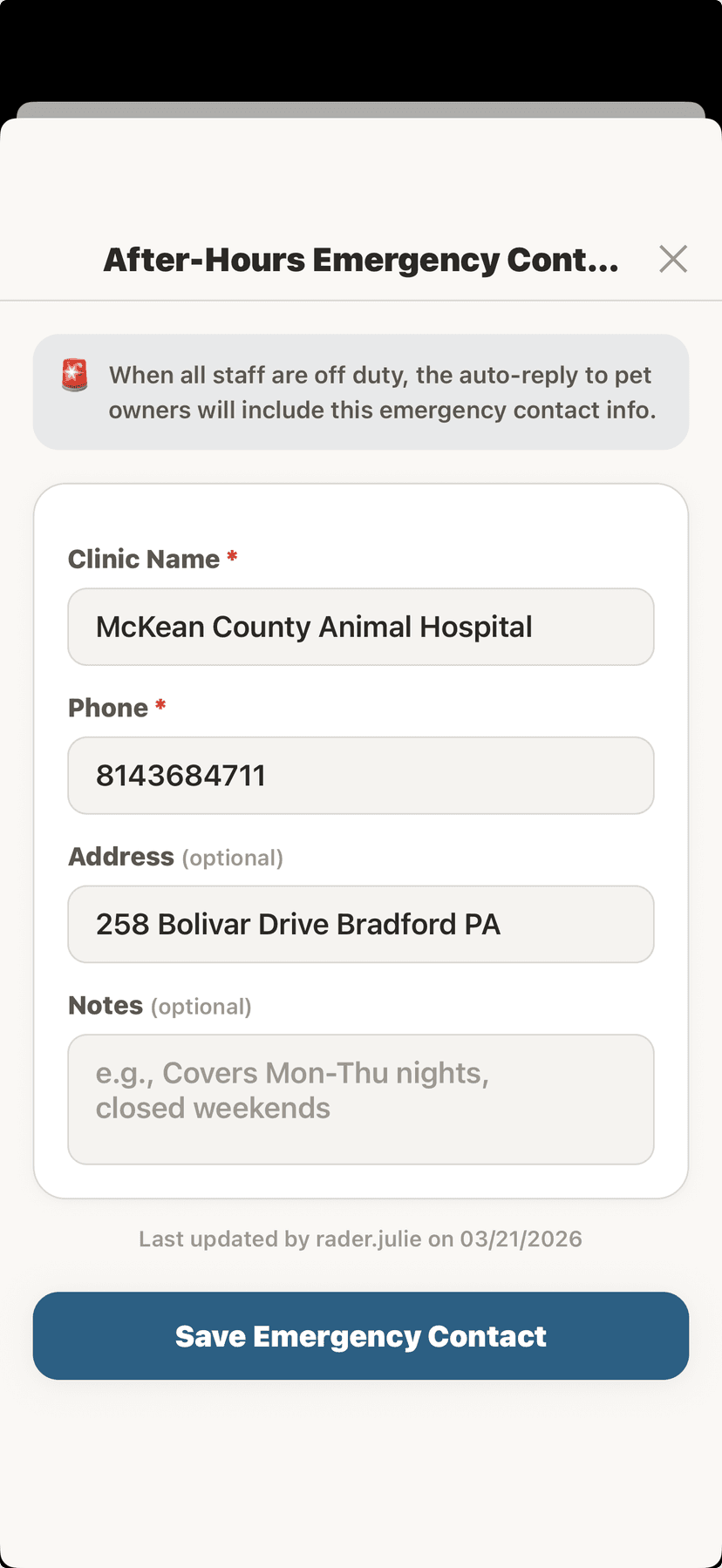
After-hours emergency contact form